
An active Business plan is required for this activity.
Create the request and check received documents
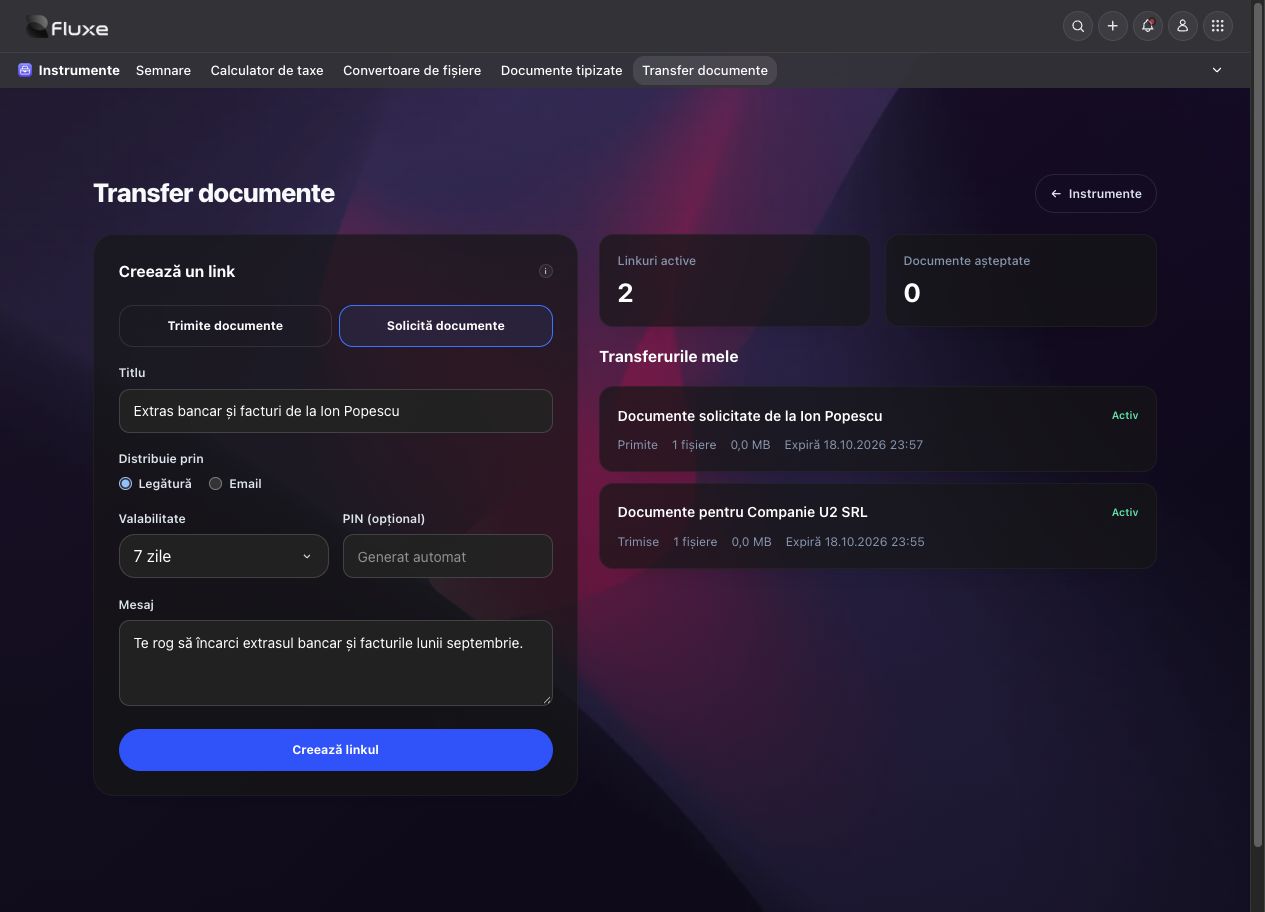
- In Tools → Document transfer → Dashboard, choose Request documents. Specify title, message and requested document list, then set the access period.
- Create the request and send link and PIN to the person who must upload documents. Check the recipient address if choosing email delivery.
- Expected documents tracks active requests without a confirmed upload. The recipient enters the PIN, selects files and confirms upload. After receipt, the request remains in My transfers, where files can be downloaded.
- Check received documents and mark what has arrived, what is missing and what needs completion. Reopen the request for additional files while the link is active. Explicitly send a reminder to the verified recipient at most once per hour. The sending service accepting an email does not confirm inbox delivery.
- To keep a received file, choose Save to Archive beside it. After confirmation, open the copy in Archive. The copy remains available after link expiry or transfer deletion and uses Archive space. Saving does not approve the document or record it in accounting.
Related resources
Practical example
Ask Ion Popescu for one month's bank statement and invoices. After the first upload, check the list and reopen the request if more details are needed; files already received are retained.
Frequently asked questions and solutions
The recipient forgot a document?
Reopen the request from its page while the link is active. If expired, create a new request. Receiving files does not mean document approval or accounting registration.
Received files do not appear in Documents.
Choose Prepare in Documents from the transfer. Files arrive in Add documents, where you review and confirm import. Preparation does not approve documents or automatically record them in accounting.
I cannot save a file to Archive.
Check Archive edit permission, available space and the file's message. A file can be at most 100 MB in both Transfer and Archive. An accepted ZIP archive is retained as a ZIP file. The received file stays in the transfer if saving fails.
I deleted the Archive copy. Does retrying recreate it?
No. The transfer retains the save record and does not create a new copy on retry. If the file is in Trash, restore it from Archive.