
- In Billing, choose Invoice and select the customer. Check the numbering series, issue date, due date and document currency.
- Use Add item for the products or services being invoiced. Enter the description, unit of measure, quantity and price, then check VAT if your company is VAT-registered.
- Complete Notes if information must appear on the invoice, then use Preview and issue. The invoice remains a draft until you confirm issuance from preview. Compare customer details, line items and total; return to editing before issuance if needed.
- After checking, use Issue document in the preview. The invoice receives its number from the selected series and can no longer be edited directly. Issuing is separate from sending it to the customer or ANAF.
Emiți factura din aplicația de telefon sau tabletă
Pentru a factura direct din aplicație, deschide Emite și alege Factură. Poți păstra documentul în ciornă până verifici toate datele; numărul fiscal este alocat numai la emitere.
- Verifică firma pentru care lucrezi, apoi completează clientul, seria, data emiterii, scadența și moneda. În Poziții, completează produsele sau serviciile, cantitățile și prețurile. Verifică TVA-ul atunci când se aplică firmei și documentului.
- Alege Salvează ciorna, apoi Verifică factura. Compară datele clientului, pozițiile, moneda și totalurile salvate. Previzualizare îți permite să verifici documentul înainte de emitere. Dacă modifici datele, salvează ciorna și verifică factura din nou.
- Când datele sunt corecte, alege Confirmă și emite. În confirmarea Emiți factura?, verifică încă o dată totalul și alege Emite factura. Documentul primește numărul fiscal și nu mai poate fi modificat direct. Emiterea nu înseamnă trimitere în SPV; aceasta se face separat.
Verifici rezultatul emiterii din aplicație
După emitere, verifică numărul, starea și totalul afișate. Deschide Previzualizare pentru a consulta factura. Pe Android, folosește Descarcă pentru copia PDF; pe iPhone sau iPad, folosește Distribuie pentru a păstra ori trimite o copie PDF.
Dacă răspunsul nu este confirmat, alege Verifică rezultatul înainte să continui. Numai dacă aplicația arată că cererea nu este înregistrată poți folosi Retrimite aceeași cerere pentru operația păstrată. Nu crea o Factură nouă pentru a repeta aceeași emitere: documentul ar putea fi deja emis.
Check amounts, currency and VAT
Line-item value excluding VAT = Quantity × Unit price. Subtotal = sum of line-item values excluding VAT. Document VAT = sum of VAT calculated and rounded to two decimal places for each rate on the combined base of line items at that rate. Document total = Subtotal + Document VAT. You can issue a zero total if at least one valid line item exists and the price is not negative.
A company that is not VAT registered issues without VAT. For a VAT-registered company, check each line item's treatment in Edit line item; reverse charge does not add VAT to the invoice amount payable. Check the total after saving each correction.
Open Additional fields for the delegate and commercial references, and Show optional fields for payment method and invoiced period. Enter only applicable details. For bank transfer, check the company's IBAN in invoice currency. Billing period start and Billing period end transmit the invoiced interval; free description remains a note. Check selected delivery address and GLN, if any, before issuance. These details are also included in the e-Factura document.
Choose a currency available in the BNR catalogue and check the rate retrieved for the document date. RON equivalent = Foreign currency amount × BNR rate per unit. For a currency quoted per 100 units, rate per unit = Published rate ÷ 100. For example, EUR 100 at RON 5.10/EUR is RON 510.
Prepare an intra-community invoice
Check the company's VAT registration and intra-community number in Your company. For a company not normally VAT registered, Intra-community VAT active must be enabled and Intra-community VAT number completed. In the form, this special number permits intra-community services; Goods can be selected only for a company normally registered for VAT.
Enable Intra-community invoice (EU), choose the permitted transaction and check the recipient and VAT number from another EU state. Currency switches from RON to EUR and can be changed; line items retain 0% VAT. The customer's number is checked again in VIES at issuance. If the service is unavailable, enter the required verifiable alternative tax evidence; a simple declaration does not allow continuation.
Check the tax note and VAT numbers in PDF. This workflow does not submit the intra-community invoice through e-Factura; D390 classification is confirmed separately in Accounting. For goods, check RO e-Transport too; for services, do not complete a transport declaration.
Complete public recipient and transport details
For a public authority or institution recipient, select B2G public procurement and enter each line item's CPV in 12345678-9 format. Product code or SKU does not replace CPV; issuance is blocked if a line item lacks a valid code.
For recipients identified by CNP, check status in the applicable RO e-Factura register. In the form, complete Status checked manually, Check date and Check evidence reference. Changing recipient, country or invoice date requires new confirmation. For an already issued, unsent invoice, use Confirm recipient register.
Enable Requires RO e-Transport only after checking the transaction. When off, Fluxe does not request declaration details or assess reporting. When enabled, enter required goods, weights, RON value, route and vehicle before issuance. Transport value in RON = Foreign currency value excluding VAT × BNR rate applicable to declaration date. Check transport details if invoice line items change; the main document automatically receives its final number at issuance.
For Incoming warehousing or Outgoing warehousing, when declaring as warehouse keeper with incomplete documents, select the appropriate declaration and enter Reference to held documents. Only missing CN code, net weight or value excluding VAT may be omitted; description, quantity, unit and gross weight remain mandatory.
Related resources
Practical example
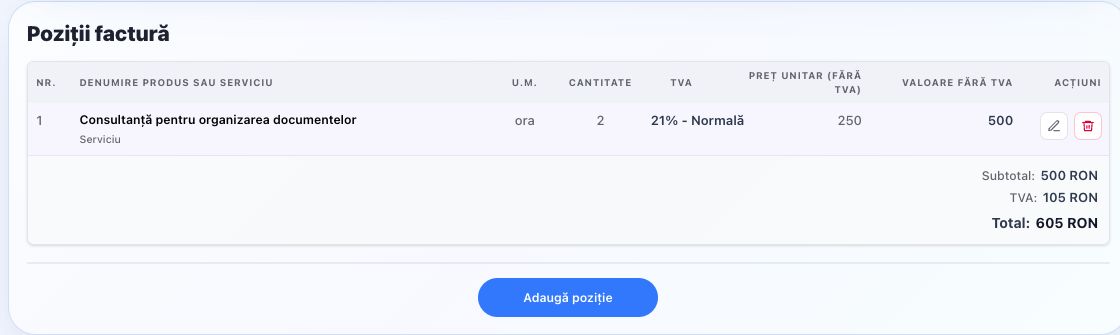
Companie U2 SRL, not VAT-registered in this example, invoices Atelier U2 SRL for 2 hours × RON 250 per hour = RON 500. Choose the customer and RON currency, enter the item and due date, save and preview. After checking, issue the invoice; check delivery to the customer and, where applicable, to ANAF separately.
Frequently asked questions and solutions
I entered the wrong quantity or customer. Can I still edit the invoice?
While the document is a draft, use Continue editing and correct the details. After issuing, check the correction or credit-note workflow for that document; do not immediately issue a second invoice for the same transaction. Check existing documents and transmissions before correcting.
The customer says they did not receive the invoice. What should I check?
Find the document in Issued documents and check the recipient’s address and sending result. If it is still in Drafts, check and issue it before sending. Resend the existing invoice when needed; do not issue a new one for the same sale.