
Handwritten signing in Fluxe produces a simple electronic signature, not a qualified signature. Check the document's requirements before choosing this method.
The signing link and PIN are valid for 2 hours. Send them only to the person who needs to sign and revoke access when the request is no longer needed.
Track signatures
- In Tools → Signing, first check Pending signatures. Choose Sign a document for prepared documents or Request signature for an external request. The dashboard also shows recent signings, trends over the last 30 days and people who signed recently. Select a day in the chart to compare In account and External signings, or open View daily values for the full list.
- Check Pending signatures for external requests that are still valid. A sent request does not mean the document has been signed; open the request to check its status and deadline.
Sign in your account
- Open the document from Documents, Calendar, Billing or Archive and choose the in-account signing action. For a new file, first upload it through Add documents in the + menu, then start signing from the saved document. Check the selected version; the original remains available.
- Draw your signature or choose a saved one. Check the page, position, size and orientation so the signature does not cover the document's information.
- Check the document and signing consent, then use Apply and finish. Review the resulting PDF in Signing history; for another signature, continue from the latest signed version.
Request another person's signature
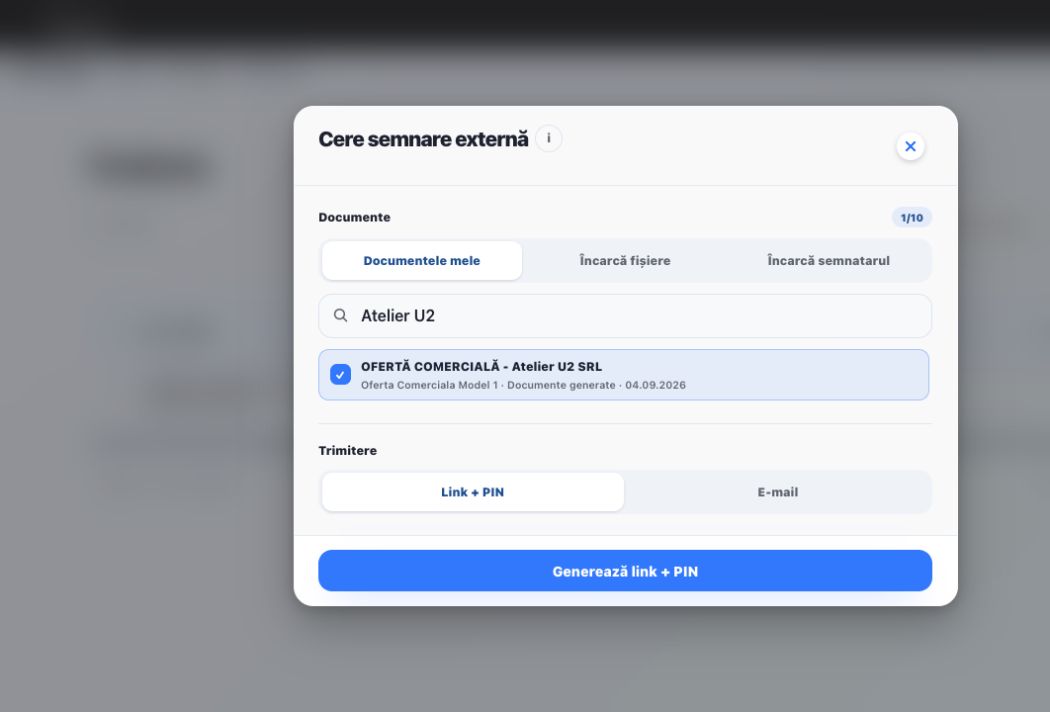
- From Signing dashboard, choose Request signature; you can also start from Signing history using Request signing. Search and select up to 10 existing documents or upload the files to be signed.
- Choose Link + PIN to share the access details yourself, or Email to send them from Fluxe. Check the selection and recipient before Generate link + PIN or Send email.
- Track the request in the Signing dashboard under Pending signatures or in External requests. The recipient must have a Fluxe account. They open the link, log in if not already signed in, then enter the PIN and review the documents. After signing, the result appears in Signing history.
Sign the received document
- Read each document and enter the first and last name from the identity document. Email is optional.
- Use the options below the document to draw the signature and adjust its size. Choose the page and place the signature in the correct position. Review each document before submitting.
- If you add documents or attachments, they reach the sender only after you confirm and submit the signature. You can delete an attachment uploaded by mistake before submission.
- Read the terms and the privacy and cookie notices. Select the confirmation only if you accept responsibility for signing the documents and acknowledge that the IP address and browser are recorded as signing evidence. Confirm and sign completes the signing process; then review the resulting documents.
Related resources
Practical example
Ion Popescu needs to sign the RON 600 quote. Select the document and check every page, choose Link + PIN or Email and send the request to the correct recipient. Check completion in Signing history; if another signature is needed, continue from the latest signed version.
Frequently asked questions and solutions
Destinatarul nu poate deschide cererea. Cum procedez?
Check the link, PIN and expiry in External requests. The access details must belong to the same request and still be valid. Check whether signing is complete before making another request, and share access only with the intended person.
Can I request another signature on an already-signed document?
Start from the latest signed version available in Signing history, check existing signatures and the next recipient. Preview the document before the new request. Using the unsigned original may produce a separate version without earlier signatures.