
An active Business plan is required for this activity.
Conversion files are private and separate from Archive and Documents. Fluxe retains only the operation record, without filename or content. The original and downloaded copies remain on your device.
Choose the format and download the converted document
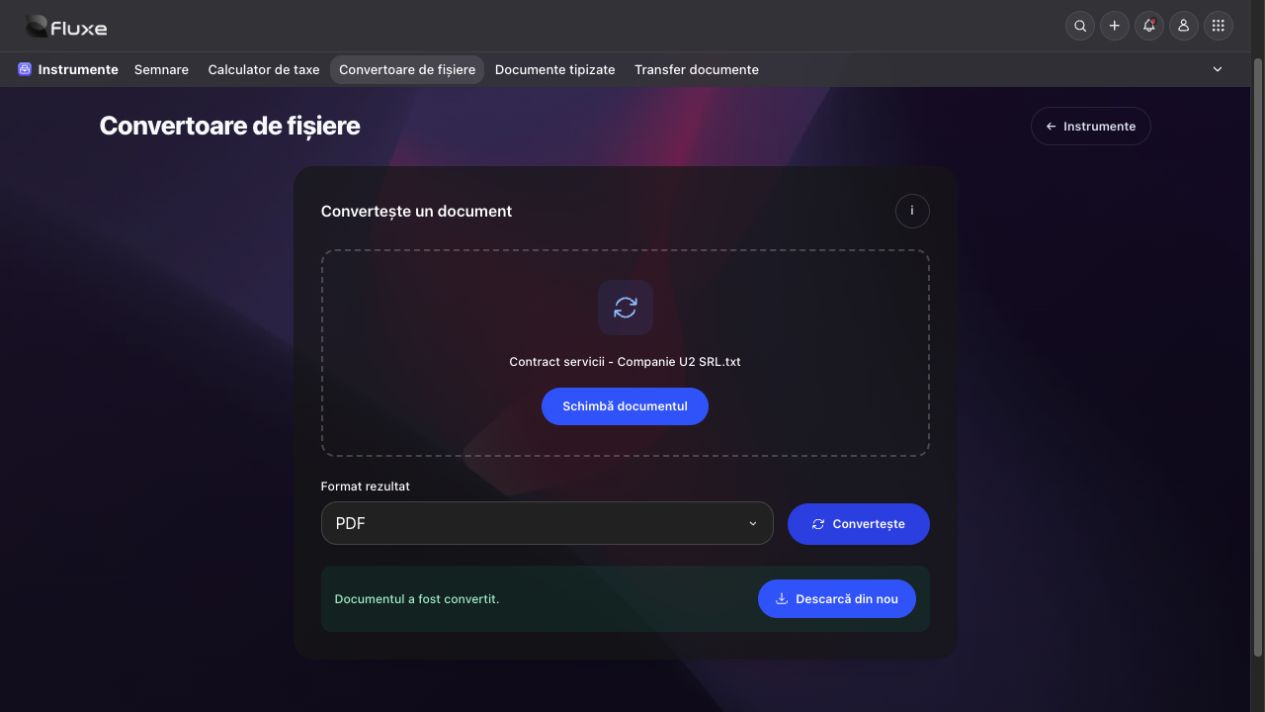
- In Tools → File converters, select up to 20 files, at most 100 MB each and 100 MB total, and check each output format. PDF is suggested for Office documents when available; where no safe choice exists, select the format explicitly.
- Start conversions. Files process in order; cancel the current file or retry an unsuccessful result. Preview supported formats and download results before leaving or reloading the page. The result is automatically deleted on leaving, even if not downloaded. For multiple pages or sheets, check files in the resulting ZIP archive too.
- Open the copy and compare pages, figures and characters with the original before use. Keep the original for any checks.
Related resources
Practical example
A PNG image can become a PDF to send as a document. A multipage PDF can produce an image for each page.
Frequently asked questions and solutions
The desired format is unavailable?
Choose a conversion offered for the file. A scanned PDF does not automatically contain text or spreadsheet cells, and converting it to an image does not extract accounting data.
Left the page without downloading the result?
Select the original again and repeat conversion; the previous result is no longer available.