
About subscriptions
The Subscriptions page helps you compare Fluxe plans, view the price and included features, and choose the option suitable for your company.
Important! Before confirming, check the plan, billing period and total shown on the Purchases page.
Change your choice before paying
If you have reached Purchases and want a different subscription, use Change selection. On the Subscriptions page, choose Monthly or Annual, then Switch on the plan you want. You return directly to checkout with your company details already filled in and the new total calculated.
For example, you can replace monthly Professional with annual Business without re-entering your tax ID or contact details. Selected stores stay in the order and the discount code is checked for the new subscription. The second accountant option is retained only if you choose Business. Check all items and the final amount before paying; choosing a plan does not confirm payment or activate the subscription by itself.
If you opened payment for a pro forma invoice, Change selection starts a new order. The original pro forma invoice remains unchanged; to pay it, return to Pro forma invoices under Account → Subscription.
Discover an application before activation
- 1. With an active Billing or Professional subscription, open an app included in a higher plan from Hub. You can explore it without a time limit, using documents and examples from a fictional business. In apps included in your subscription, you continue working with your own business data.
- 2. When you try to add, change or send data in the presentation app, the required subscription appears. For example, you can read prepared conversations in AI Assistant, while Business is required for your own conversations. Choose Continue exploring or View subscription to compare the offer; this choice does not automatically activate or pay for a subscription.
- 3. If you have an eligible subscription paid by card and a card saved for renewal, Try for free may appear. Check the duration, end date, new rate, and agreement for automatic payment before activation.
During the free period for the higher plan, the current subscription continues to be paid. Upon expiration, the plan changes on the same subscription, and the difference for the remaining period is automatically invoiced. From Account → Subscription, you can stop the trial early and keep the current plan. If payment requires confirmation, check the status in Subscription before continuing.
Use an offer linked to your business
If your business has an offer, find it in Subscriptions under Your business offers. The offer is linked to the tax identification number, is valid for one year from being granted and can be used once. Check its expiry date before choosing a subscription.
- Choose the subscription from the offer and continue with View at checkout.
- For a percentage discount, select I want to use the discount. Check the total, then confirm payment. To keep the offer for later, continue without the coupon and pay the full price.
- For a free week or month, select the offer for your chosen plan, accept the contractual documents and choose Activate the free period. No card is needed for this activation.
The discount applies only to the first confirmed purchase: discount (EUR) = eligible subscription price (EUR) × offered percentage ÷ 100; discounted price (EUR) = eligible price − discount. The discount is rounded to two decimal places and cannot be combined with another coupon. Check the final total and VAT treatment at checkout; if VAT is included in the price, it is not added again.
The free week lasts 7 days, and the free month lasts one calendar month from activation. A paid subscription does not start automatically when it ends. If you already have a paid subscription, it and its renewal stay unchanged. You can activate only one promotional period at a time.
Do not use a free period for a plan already included in your active subscription: choose a higher plan or keep the offer until your subscription ends. For an active Stripe subscription, use the existing plan change process; the offer does not automatically discount renewals or start a second subscription.
Upgrade, downgrade or cancel your subscription
Under Account → Subscription, choose Change plan and check the plan and amount before confirming. For an upgrade, you pay only the difference for the remaining period. The higher plan becomes active after payment is confirmed, and the expiry date of the period already paid for is retained.
Amount due = (new plan's monthly price − actual monthly amount paid for the current plan) × days remaining ÷ 30. Fractions of a day are calculated to the second; the result is rounded to two decimal places. For an annual subscription, the amount paid is divided by 12 for the monthly equivalent. All compared amounts use the same currency and include the VAT applicable to each item.
For example, with 20 days remaining, a subscription paid at 30 lei per month and a new plan at 60 lei per month, the difference is (60 − 30) × 20 ÷ 30 = 20 lei. The invoice shows 40 lei for the new period and −20 lei for the adjustment of the unused period of the old subscription, with the original invoice's number and date. The total due is 20 lei.
When downgrading, you keep your current plan until it expires. From that date, the lower subscription is billed automatically using the saved payment method. You do not pay for the new plan when scheduling the change. If payment fails, check the payment method in your account.
Cancellation stops the next renewal. The subscription shows Cancelled, with the date until which it remains active. Access for the period already paid for continues until expiry.
Manage your subscription
- 1Under Account → Subscription, check your plan, included benefits and next renewal date or end of access. If the current period's invoice is confirmed, you see the amount paid for that period. Otherwise, you see the standard price. The amount paid does not confirm the next renewal amount. Track subscription documents in Invoice history and Pro forma invoices. Details and history shows the last payment, first activation and trial period, if you had one. Use Preview to check the PDF or Download to keep a copy, including after your subscription expires.
- 2Open Manage renewal to manage the payment method and choose Automatic or Manual renewal when card payments are available. Stop renewal preserves access until the displayed date. Check that date before confirming.
- 3At expiry, choose Renew subscription next to the expired subscription. Checkout adds the expired Fluxe plan, WooCommerce and eMAG stores, and extra accountant seats. You can remove any item before paying.
- 4The basket is paid in a single payment. Each subscription keeps its own period and receives its own invoice in Invoice history only after payment is confirmed.
- 5For each active WooCommerce or eMAG module, check the price, payment status and expiry. Under Add store, choose WooCommerce or eMAG, select the connected store and continue to payment. Platforms marked Coming soon cannot be purchased.
- 6Choose Change plan to compare plans. Your current plan is identified and your monthly or annual period is retained. Check the new period, total and change conditions before confirming payment.
Free trial
- 1You choose Invoicing and go through the same three steps of company data, contact, and final confirmation.
- 2Confirm the email received from Fluxe and your card in Checkout. Billing has a total of 0 during the free period; if you add other services, you pay only for those purchases.
- 3After confirmation, use Billing, Catalogue, Notes, Customers and Support free for 3 months.
Company details
Enter the CUI to fill company details automatically. Check the name, address and Trade Register number and complete missing information before creation.
If payment fails
At expiry or after a failed payment, no pro forma invoice is issued and no tax invoice is issued for an unpaid amount. Under Account → Subscription, choose Renew subscription next to the expired subscription. In checkout, check all automatically added expired subscriptions and remove any item you do not want to renew.
Confirm a single payment for the items retained in the basket. Each subscription remains separate, with its own period and invoice. If you remove every item, payment cannot start. Removing an item from the basket does not cancel the subscription or change its automatic renewal setting.
For automatic renewal, we attempt payment four times: at expiry, after one day, after two days and seven days after expiry. Before each attempt, you receive an email announcing expiry and the upcoming payment. Once payment is confirmed, we stop attempting to charge for the same period. Invoices appear in Invoice history.
Invoicing + Catalog
Lunar
1,79 €
0% discount · without VAT
Anual
19,99 € · 1,67 € / lună
7% discount · without VAT
During the trial or after payment, you can use Billing, Catalogue, Calendar, Notes, Customers, Archive with unlimited storage, and Support. Risk analysis, also called Risk assessment, is included in all subscriptions and can also be opened from Tools. Payment is through Stripe and renewal is automatic by default; you can change it to manual under Account → Subscription. After payment, the subscription is sent for financial review; you receive approval or refusal by email and, where applicable, the stated reason.
Professional and Business
Professional
8,99 € / lună · 96,99 € / an · echivalent 8,08 € / lună · 10% reducere anuală
Includes all Billing features, document uploads and scanning, OCR for 200 documents per month, all available document templates, Handwritten signing and Useful calculators. After reaching the monthly OCR limit, subsequent documents are completed and approved manually. The limit resets at the start of the next calendar month, including for annual payment.
Business
19,99 € / lună · 217,99 € / an · echivalent 18,17 € / lună · 9% reducere anuală
Includes all Professional features, Document transfer, File converters, Legislation, OCR without the 200-document monthly cap, Accounting, bank transaction checking, production costs, Fluxe AI and access for one accountant. eMAG and WooCommerce stores are purchased separately with any subscription.
You can choose monthly or annual billing only. Monthly equivalent = annual price ÷ 12 months. The formula is: annual saving = (monthly price × 12) − annual price; discount percentage = round[(annual saving ÷ (monthly price × 12)) × 100]. For Billing, Professional and Business, the formula produces 7%, 10% and 9% respectively. For Professional, the annual total is €96.99 and the annual saving is €10.89.
For a new purchase, Professional and Business are activated after payment confirmation. The trial offer for a higher plan appears in Hub only for eligible customers with a subscription already paid by card and a card saved for renewal. Prices are without VAT, and the final total is calculated in Checkout after the company address and VAT ID verified in VIES, when applicable.
Compare plans
- 1Open the comparisonOn the Subscriptions page, choose “Compare subscriptions” to review the plans before purchasing.
- 2Verify the application and functionCompare the Billing, Profesional and Business plans for the applications you need. A tick means the feature is included in the plan.
- 3You are reading the marked conditionsAn asterisk refers to the footnote. For Seller Central, WooCommerce and eMAG modules are purchased separately with any active subscription.
Choosing a subscription.
- 1 Choose period On the Subscriptions page, select Monthly or Annual to see prices for your chosen period.
- 2 Choose plan Choose the plan with the features your company needs. Check the price, trial length and billing period before continuing.
- 3 Fill in the company You enter the Tax ID / CUI and verify the company data. If an active account already exists for that Tax ID / CUI, you choose 'Recover Account' or 'Log In'; you do not re-enter the company data.
- 4 Confirm and pay In Purchases, check the plan, period and Order summary, select a payment method, read and tick the required documents, then select Complete order. Saving = standard price for the period − total for the period. Effective percentage = saving ÷ standard price × 100, rounded to the nearest whole number. For annual Professional, the displayed discount is 10% and the saving is €10.89. After payment is confirmed, the invoice is issued, scheduled for transmission through SPV and appears in Received invoices in your account. Enter your card in the secure Stripe form; Apple Pay and Google Pay appear only when available on your device and browser.
Company details are entered once, during registration. In Purchases, accept the required documents before completing payment.
Check your order and payment in lei
Order summary shows each purchase, the selected period, the reference price in EUR and the RON equivalent. BNR exchange rate shows the rate and publication date. If no rate was published that day, the latest previously published rate is used. New orders are paid in RON; an already issued pro forma invoice retains its amount and currency.
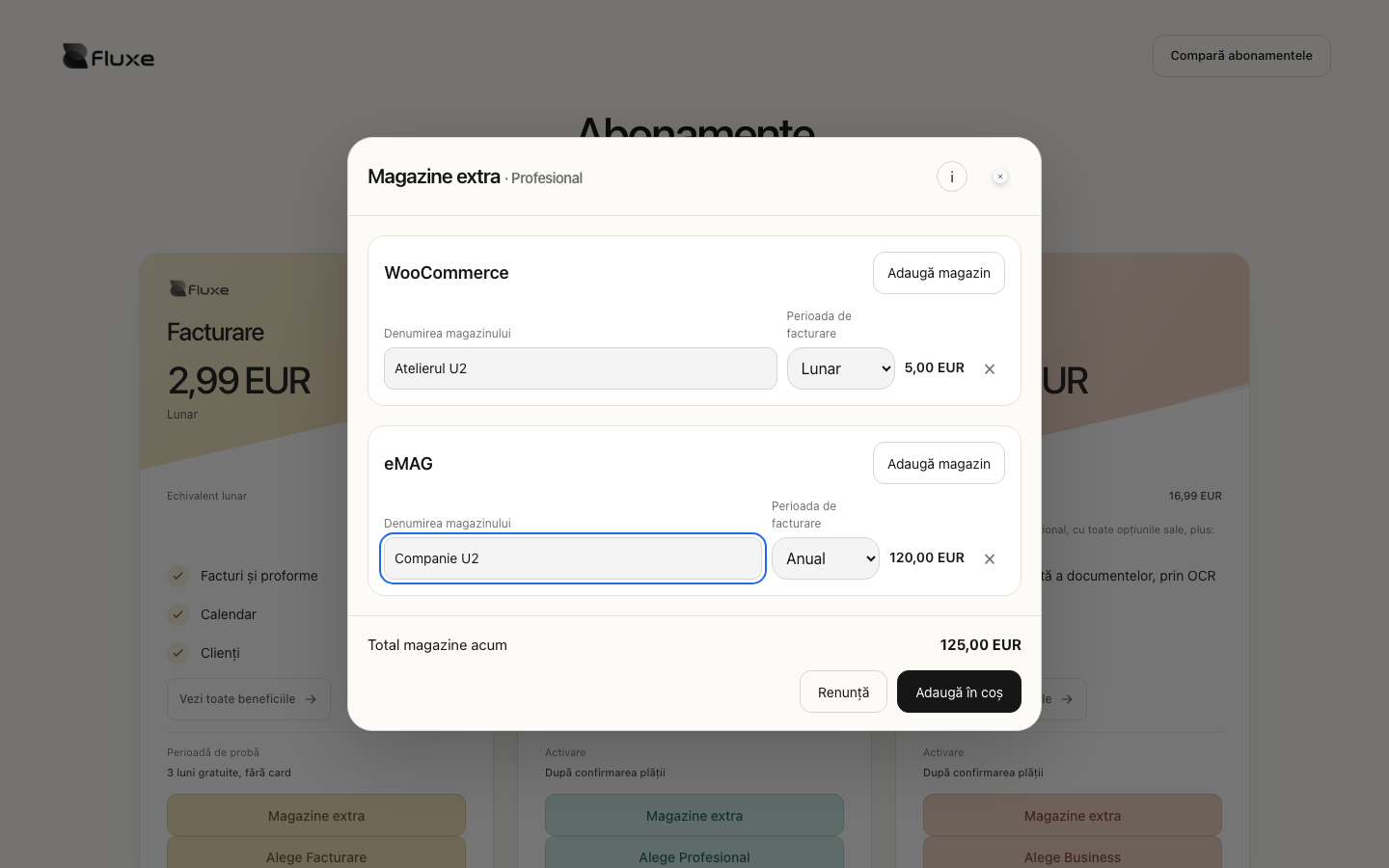
- Under Add to your order, open Add store, choose the marketplace, enter the name and select Monthly or Annual. Add to order includes the store in the summary at the price for its position: first store or additional store.
- With Business, you can add a Second accountant under Extra accountant and choose its payment period separately. These options are optional; you can also purchase them later directly from your account.
- Check Subtotal, VAT and Total. Use Remove for an option you no longer need, then check the recalculated amount before Complete order.
For each purchase: discounted price (RON) = round to 2 decimal places[discounted price (EUR) × BNR exchange rate (RON/EUR)]. For a price excluding VAT: VAT (RON) = round to 2 decimal places[subtotal (RON) × VAT rate ÷ 100]. For a VAT-inclusive price: subtotal (RON) = round to 2 decimal places[VAT-inclusive price (RON) ÷ (1 + VAT rate ÷ 100)], and VAT = VAT-inclusive price − subtotal. The order total is the sum of subtotals and VAT for all purchases. VAT is displayed in RON according to the applicable tax treatment.
Basket purchases are paid together on confirmation, but the Fluxe plan, each store and the extra accountant have separate invoices and subscriptions. Each renews on its own due date, monthly or annually. On renewal, the reference price in EUR is converted at the BNR rate applicable to the new invoice. Find invoices under Received invoices, and periods and renewals under Account → Subscription.
Complete payment of the difference
During the trial, Upgrade opens the payment page because there is no paid period from which to calculate an adjustment. If the bank requires card confirmation for an upgrade, choose Pay the difference under Account → Subscription and complete the same payment. Your current plan stays active until confirmation; do not start a new order for the same change.
If renewal is unpaid
After a failed normal renewal payment, you have 7 days to update the payment method. A successful payment resets the deadline. After the deadline, access becomes a demonstration. Accountant collaborations remain saved; access follows the active plan, available seats and granted apps.
Fluxe AI included in Business
AI Assistant activates automatically with your Business subscription and is included in its price. You do not purchase a separate AI subscription. Access follows the validity of Business and stays personal; you cannot grant it to invited accountants.
Working with accountants
If your subscription allows accountants, use Accountants to choose each person's applications and either View only or View and edit permission. The list includes applications available in your subscription, except AI Assistant. You can separately grant Company account access to manage the company, settings and subscription. Only the owner can manage the password, 2FA, account deletion and other accountants' permissions.
The first associated accountant is free. Each additional seat costs €5/month or €55/year. In Account → Subscription, under Accountant subscriptions, select the billing period, confirm automatic renewal and use Buy accountant seat. When adding a second or subsequent accountant, the application checks paid seats and directs you here if a purchase is needed. After payment confirmation, return to the invitation and send it. Monthly cost = number of paid additional seats × €5; annual cost = number of paid additional seats × €55. Three accountants require two additional seats: €10/month or €110/year. You can activate as many additional seats as needed. Each seat has a separate subscription; the invoice is issued to the company for the service without the accountant’s name, email or other personal details.
In Accountant seats, check the subscription number and the associated accountant’s email; the same number appears in the Subscription column of the accountants table. Use Stop renewal for the correct person’s subscription. That accountant keeps access until the paid period ends, then loses the access provided by that subscription. If automatic payment fails and the seat expires, use Renew subscription in Account → Subscription or Accountant seats. The associated accountant regains access after payment confirmation. Other collaborations and subscriptions remain active. Revoking access frees the seat for another accountant but does not stop subscription renewal; stop it separately if you no longer need the seat.
WooCommerce and eMAG stores
You can buy WooCommerce and eMAG stores with any Fluxe subscription. Stores are paid for separately from the plan, including Business. Up to five stores can be activated for each marketplace.
On the Subscriptions page, use Extra stores on your chosen plan. Add stores, give each a name and choose Monthly or Annual. Add to basket preserves your selection when you continue with the subscription. The first payment can include the plan and all stores; you receive a separate invoice for each subscription. Each store has its own billing period and renews independently. If you start the Billing trial, you pay only for stores now; the plan's trial begins after email confirmation.
WooCommerce: the first store is €5 per month and each additional store is €3.99. eMAG: the first store is €10 per month and each additional store is €5.99. Annual price = store's monthly price × 12, with no additional annual discount. For example, the first monthly WooCommerce store and the first annual eMAG store together cost €5 + (€10 × 12) = €125 before taxes at the first payment; WooCommerce then renews monthly and eMAG annually. Check the displayed total before paying, including taxes and a code discount if you use one.
After purchase, under Account → Subscription, link each store subscription to a company WooCommerce or eMAG connection. If you do not have the connection, use Connect a store and return to link it. Linking uses the subscription already paid for. You can also purchase a connection's subscription directly from your account; check the displayed trial period before confirming. When renewal is stopped, access and synchronisation continue until the end of the paid period; after expiry, the oldest remaining store receives the standard price at its next billing. Invoices can be previewed and downloaded from subscription history. Previously issued historical documents remain available.
Demonstration and grace
After the trial, you have 3 grace months during which you can only view. After that, the account remains in demo mode until you choose a subscription or request deletion. We do not automatically delete data.
Other apps
With Billing active, you can view demonstrations of the other applications without editing, exporting or downloading. Choose a subscription that includes them to work in them.
On-demand deletion
Before requesting account deletion in My account → Security, download the invoices and documents your company must retain.
See the Privacy Policy for information about data retention.
Partner code discount
Invite and earn from your business account
Your business account automatically has an associated partner profile, whatever your subscription. Choose Invite and earn in the footer to open the Partner dashboard with the same login. Under Codes, find your automatically prepared referral link; copy and share it or generate other codes. The partner profile has its own area, while your business account and subscription stay the same.
If you want to recommend Fluxe without a customer account, use Become a partner registration. You receive a dedicated partner account with its own dashboard and access to Fluxe Demo in Hub. For withdrawals, check and complete company and bank account details in the partner profile.
From the account menu in the Partners area, you can open your company's Hub for your work or Fluxe Demo for a presentation with fictional data. On leaving Demo, you return to the Partner dashboard. If you have an account with the Partner role, continue using its own area and menu.
If you received a partner code, open the referral link: the Subscriptions page automatically shows the code and discounted prices. You can also enter the code under Discount coupon before paying; the total updates automatically as you type. Receive a one-time 10% discount on your first purchase for any Fluxe subscription. Check the discounted amount before confirming payment; a code already linked to the account is filled in. The discount does not repeat on subscription renewals or later purchases, even if you change plans or use another code. Subscriptions paid together in the first order receive the discount.
First-purchase discount = subscription price × 10 ÷ 100. Amount after discount = subscription price − discount; applicable taxes appear in the payment summary. Only one code applies to the same payment. An already issued pro forma invoice is not changed by a code entered later.
The partner's commission is calculated separately: commission = subscription price before discount × 25 ÷ 100. For a €100 subscription and a €10 first-purchase discount, the amount after discount is €90 and the partner's commission is €25 for the eligible payment. Your discount does not reduce the commission base and commission is not added to the price you pay.
Reward for the Billing trial
If you recommend Fluxe through your partner code, you receive a one-time 5 lei bonus when the customer confirms their email address and activates the 3-month Billing trial. The 5 lei covers the entire trial, even if the customer pays nothing when creating the account. The bonus does not repeat monthly and does not count as a paid renewal.
The period during which you earn commission
The 25% commission applies for up to 3 months after the customer's first purchase, whether they choose Billing, Professional or Business. Changing plans does not restart or extend this period.
The same customer is also subject to the overall limit: the first purchase and up to 6 paid renewals. The partner no longer earns commission on the 7th renewal. Changing the plan or code does not reset the count. Failed payments and free periods do not use renewals; subscriptions paid together count as one payment towards the limit. The customer's 10% discount applies only to the first purchase and does not repeat in later months.
For an annual payment or a period extending beyond the eligible window, only the eligible part is counted: commission = price before discount × 25 ÷ 100 × eligible duration ÷ total paid duration. Durations are measured in the same unit of time and the result is rounded to cents. For example, for a 365-day year priced at €365 and 90 eligible days: 365 × 25% × 90 ÷ 365 = €22.50.
Example: a customer who stays on Billing
You receive 5 lei when the 3-month trial is activated. At a price of €100 per month before discount, each of the next 3 fully paid eligible months earns €25: 3 × 25 = €75. The customer pays the equivalent of €90 on the first purchase and €100 on each renewal. The 5 lei bonus is recorded in EUR at the BNR rate on its activation date; for example, at 5 lei per EUR, the bonus is €1 and the example total is €76. The same 3-month period applies if the customer chooses Professional or Business directly.
Estimate earnings for 100 Business customers
Before preparing a campaign, consult the optimistic scenario in Partner dashboard or Rules. The example uses the current monthly Business price and shows the discounted first payment, commission per customer, income for each eligible month and the total for the same group of 100 customers. Estimated monthly commission = 100 × commission per customer rounded to two decimal places. After the 3 eligible months, those customers no longer generate commission; continued income requires new referrals. Check the assumptions under (i): the estimate assumes full payments and is not an available withdrawal balance.
View the Business scenario at the current price
Track referrals and available funds
Dashboard shows your available EUR balance, referred account counts by subscription and latest withdrawal requests. Open Referrals to see each account's plan and subscription status, referral date and code used at signup. Under Codes, enter Your code and Nickname, then choose Generate code. Nickname is the public creator or brand name shown on the Subscriptions page in your referral, beside the discount percentage and code. Copy the /ref/CODE link to share it.
To pause, choose Stop code; you can activate it again later. To remove it from the list, choose Delete code and confirm in the dialog. A deleted code can no longer be used for new referrals or discounts and cannot be recreated. Existing referrals, commissions and discounts are retained; deletion does not stop still-eligible commissions from customers referred earlier.
Partner balance = validated bonuses and commissions − refund or dispute adjustments − approved or transferred payments. Available to withdraw = partner balance − amounts reserved in unapproved requests. If your balance is €150 and you request €40, you see €40 reserved and €110 available. On approval, the balance drops to €110, the request reservation becomes zero and the available amount stays €110. Confirming the transfer does not deduct the amount again. Rejection or cancellation releases the requested amount. Displayed balance and available amount have a minimum of zero; amounts already transferred and later refunded are offset against future earnings.
Balance amounts represent commission excluding VAT. Commission base in lei = amount requested in EUR × BNR EUR/RON rate on the request date, rounded to cents. The rate stays fixed in the request; VAT is added to the invoice for a VAT-registered company, and payment awaits invoice validation in SPV.
Open Referrals · Read the Partner rules
Prepare your account to receive commission
From the account menu, open My account → Personal and company details and check contact details, the recipient company, IBAN and bank name. Use the company's bank account in which you want to receive commissions. If you change your email address, confirm the new address to continue in the Partners area.
Under My account, find Personalisation for theme, background and text size, Notifications for choosing alerts by email, in your account or on your device, and Shortcuts for your keyboard combinations. Settings stay in the same Fluxe account. If you have a customer account, they also apply when you return to your company's Hub. Address confirmation and password recovery remain available by email.
Open Security to change your password using the current password, enable two-factor authentication or request an email code at login. For 2FA, scan the QR code, confirm the 6-digit code from the authenticator app and keep recovery codes somewhere safe. Email confirmation requires the current password and the code sent to the account's address. The same page contains Account deletion: first download documents you must retain and check confirmations carefully. If partner financial history must be retained, follow the displayed message and contact Customer support.
Check personal details, the company and bank account
Request a transfer to your bank account
- Open Withdrawals and check Available balance in EUR.
- Under Request a withdrawal, check the beneficiary, IBAN and bank. Enter Amount to withdraw (EUR); it must be greater than zero and no more than the available amount. The BNR rate available on the request date fixes the commission base in lei; for a VAT-registered company, VAT is added to this base.
- Confirm that you have checked the EUR amount and bank account, then choose Submit withdrawal request. Under Withdrawal history, track status, request date, processing date and, once completed, transfer date and reference.
Submitting the request reserves the amount but does not mean the bank transfer has been made. Payment is checked and processed by people authorised by Fluxe. The usual period is two days and may reach seven days during busy periods. A rejected request releases the reserved amount.
Requests cannot be deleted from the partner account. A later IBAN change applies to future requests; a submitted request retains the bank details you confirmed. If you notice a mistake, contact Customer support and identify the request number before submitting another.
Invoice your commission and track SPV
From Account, open Commission invoicing and SPV. You can upload an invoice issued in your company's software or enable Automatic invoicing in Fluxe. Your company is the supplier; the company operating Fluxe is the customer. For automation, reserve a new series separate from ordinary invoices, set the starting number once, accept the agreement for issuing on the company's behalf and connect SPV for the same company.
- Submit the withdrawal request and open View request. With the automatic option, check the generated invoice, companies and amounts, then choose Accept invoice and send to SPV. Only your acceptance schedules automatic transmission.
- With the manual option, open Invoice details and copy the customer details, commission description and RON amounts. Issue and transmit the invoice through RO e-Factura using your company's software, then upload the PDF, series and number, date and ANAF upload index.
- In the request, track SPV status and SPV upload index. Use Refresh SPV when awaiting ANAF's response. Payment can be confirmed after the validated invoice is checked in Production SPV. An upload index or uploaded PDF alone does not confirm validation.
Commission base in RON = commission requested in EUR × BNR rate fixed on the request date. VAT = commission base in RON × VAT rate ÷ 100. Total due = commission base in RON + VAT. For example, €100 at RON 5.0000/EUR gives a base of RON 500; for a VAT-registered company at 21%, VAT is RON 105 and the total is RON 605. For a company not registered for VAT, the total stays RON 500.
After you choose manual upload, future requests use the same method. You can re-enable automation under Commission invoicing and SPV. The chosen method and details of an already submitted request remain in its history. Do not issue another invoice for the same commission; if the document is wrong, contact Customer support before acceptance or payment and check the required correction with your accountant.
Why is payment waiting when I have an ANAF index? The index identifies the upload. Wait for ANAF validation and check the status again. For a manual invoice, the supplier, customer, number, date, base, VAT and total must match; if any differ, check the invoice with your accountant and identify the request number in Customer support.
Check and retain received documents
Under Invoices and statements, find received documents with number, amount, currency and issue or payment dates. Use Preview to check the document without downloading it. Document actions let you download the PDF, open the print version or use Share if your device supports file sharing.
Use QR code to provide temporary document access: choose validity, generate the code and send the PIN separately. You can revoke access; generating a new QR code cancels the previous one. Keep a copy for business records. Documents cannot be deleted from the partner account, and a commission statement does not replace a tax invoice.
Present Fluxe and ask for help
Fluxe Demo is available to partners, moderators, finance accounts and businesses using Invite and earn. If you have a customer account, first open Partner dashboard and use the account menu there. Choose Fluxe Demo from the account menu to present the apps, integrated stores and My account options of a Business account. You can add and change data for the fictional company Atelier Lumina SRL to demonstrate activity steps. Several people can use Demo at once, each with their own changes and files; someone else's exit does not interrupt your presentation. Use fictional data only; real submissions and payments are unavailable.
The example covers January–December 2025, with 20 documents issued in Billing each month, 30 business customers, 40 suppliers and 15 individuals. The three employees have contracts and monthly payroll; other individuals have four day-labour records, three copyright contracts, three purchase statements issued and recorded in Accounting linked to the relevant individuals, and two service contracts. Legislation contains ten conversations with extracts from available official sources.
You can follow the same product from raw material purchase, receipt and production through to invoice, payment received and accounting. For the recoverable VAT example, select January 2025 and compare invoice MAT-01, goods receipt NIR-01, the purchase journal, D300 VAT return and the balance of account 4424 in the trial balance. Prepared tax returns are checked separately and do not constitute filings with ANAF.
You have 60 minutes and up to 5 AI requests per session. After using the AI requests, you can keep working manually. When time expires, you automatically return to the account area from which you started; to return earlier, choose Exit Demo from the account menu. On completion, all changes, uploaded files and generated documents are deleted, including unfinished uploads. The next session starts from the initial data. If you choose Fluxe Demo again in the same browser before exiting, you continue the current session with the remaining time. Before a long presentation, prepare examples and save AI requests for the steps you want to show.
For a question about commission, a withdrawal or a document, open Customer support from the account menu. Describe the situation and include the request or document number; follow replies in the same ticket. Do not send passwords, authentication PINs or full card details.
A reward is missing. What should you check?
For the bonus, check that the referral was used at signup and that the trial began after card and email confirmation. For commission, check payment, the eligible period and renewal count. A full refund withdraws the commission for that payment; a partial refund reduces it proportionally. Track the balance in Dashboard and request a transfer under Withdrawals after entering the IBAN and bank in Personal and company details.
The request is submitted but the money has not arrived. What should you do?
Check the status and deadline in Withdrawal history. Approved · to transfer means the transfer has not yet been recorded as completed. If it shows Transferred, check the date, reference and bank account in the request. If the maximum period has passed or details are wrong, open Customer support and identify the request number. Do not resubmit the same request merely because the money has not yet appeared in your account.
Using a discount code
Open the link you received to view the code and discounted prices under Subscriptions, or enter the code under Discount coupon at checkout. The amount recalculates automatically as you type, and the link's code is retained when you choose a plan and continue registration. For a Seller Central store, enter Discount code in the activation form. Fluxe AI is included in Business; the discount applies to the eligible subscription, with no separate AI activation or purchase. Check the percentage, applicable period and final amount displayed at checkout.
For a percentage code: discount = eligible subscription value × discount percentage ÷ 100, rounded to two decimal places. For a fixed amount code in euro: discount = minimum(code amount, eligible value in euro). Total after discount = eligible value − discount; the total cannot be negative. A 100% code reduces the eligible value to zero for the period set by the offer. Also check the price of the next renewal: a code for the first invoice does not automatically reduce subsequent invoices.
On the invoice, the discount is identified by the text "Commercial discount according to discount code [COD]", where COD is the code used.
Resolve common situations
- If the lei equivalent differs from an earlier day, check the date and value of BNR exchange rate. A payment already prepared retains the amount of that order.
- If the first store was removed, check the prices of the remaining stores: the next eligible store may receive the standard price.
- If you do not see Extra accountant, check that you selected Business. If you already have an extra seat or a pending payment, manage that subscription from your account.
- If payment is confirmed but an invoice is not yet visible, check Received invoices again before repeating the order. For a failed payment, resume the existing order and check the total.
Related resources
Practical example
Firma emite doar facturi și verifică planul Facturare. Dacă are nevoie și de documente ori evidențe contabile, compară Profesional; Profesional include citirea automată pentru 200 de documente pe lună, apoi completare și aprobare manuală; pentru Fluxe AI verifică Business. Alegi funcțiile necesare, apoi compari suma lunară cu totalul anual afișat: economia anuală = 12 × preț lunar − preț anual.
Frequently asked questions and solutions
I returned from payment, but the plan is not active. Should I pay again?
Check your subscription and payment status in your account. Returning from the payment page alone does not confirm activation. If the result remains unclear, open a ticket with the time and transaction reference, without card details, before repeating payment.
The plan is active, but a feature is missing. What should I check?
Compare the feature with the plan shown in your account and check the company and app you are using. For Seller Central, separately check the module, store and its activation. If access should exist, send the page and subscription status to Support.