
Documents, Due dates, Activity and Agenda are separate so you can consult needed information without losing the selected period. Month shows documents grouped by day; Activity always shows operations and sign-ins for the selected day, including with Month documents. Document date may differ from upload, change or due date.
To review narrows the period's documents to those requiring data checks. Not sent to SPV tracks invoice submission, while Overdue and Due today open due dates relative to the current day. Data approval does not prove SPV submission; proposed catalogue items have their own review.
Reuse a frequent search
Save filter is useful when frequently reviewing the same document category. Saved filters retains search and filter combinations in the current browser, separately for your account; it does not transfer the list to another device.
- Apply search text, search scope and required filters, then choose Save filter and enter an easily recognised name.
- For a future review, choose the combination from Saved filters. Check the displayed period: the filter applies to the current period without automatically returning to its saved date.
- Saving with the same name updates the existing filter. The list keeps the latest 8 filters; saving a ninth removes the oldest.
Plan the next 7 days
Agenda combines outstanding invoices and Notes notifications scheduled from today through 6 days ahead inclusive. The range follows the current day regardless of the day or month viewed in Calendar. Only accessible information is available.
- Open Agenda and review displayed dates and deadlines in order.
- Open the invoice to check customer and receipts, or the note for the scheduled activity. A Notes notification does not automatically record a receipt or change an invoice due date.
Track invoices due and outstanding balances
Due dates shows issued invoices with payment deadlines in the selected day or month and a positive outstanding balance. The balance accounts for confirmed receipts and issued credit notes, including when viewing an older period.
Overdue, Due today and In the next 7 days are relative to today regardless of the selected period. Overdue includes past deadlines; In the next 7 days starts tomorrow and includes day seven. Invoices due today appear separately.
- Consult Due dates for the selected period or expand Overdue, Due today or In the next 7 days to decide which invoices to follow up first.
- Compare balances in the same currency. RON and foreign-currency totals display separately; do not add them without conversion appropriate to your purpose.
- Open an invoice from the list and check deadline, customer and receipts before requesting payment. An amount awaiting confirmation is not yet a confirmed receipt.
How the outstanding balance is calculated
Outstanding balance = max(0, invoice total − amount credited for the invoice in the same currency − max(confirmed receipts in invoice records, confirmed online payments for the invoice)). All amounts are in invoice currency; the credited amount is deducted as a positive value.
max chooses the greatest compared value. Invoice-record and online-payment confirmations are not added again for the same receipt. Reserved or pending-confirmation amounts do not reduce the balance until receipt is confirmed.
For a RON 1,000 invoice, RON 200 credit note and RON 300 receipt confirmed both in invoice records and online: balance is max(0, 1,000 − 200 − max(300, 300)) = RON 500.
Supporting documents
- The date or period of required documents and access to the company holding them.
Choose the period and view documents
- Open Calendar and choose Month for an overview or Day to review a date. Today returns to the current date.
- In Documents, enter a reference in Number, name or business partner. Choose In selected period for the displayed day or month, or Across Calendar if the date is unknown, then press Search. Compare dates and business partners before opening a result.
- Open Filters and combine Source, Document type, Document review and SPV status. To see all period documents again, use Reset filters, which also clears search text.
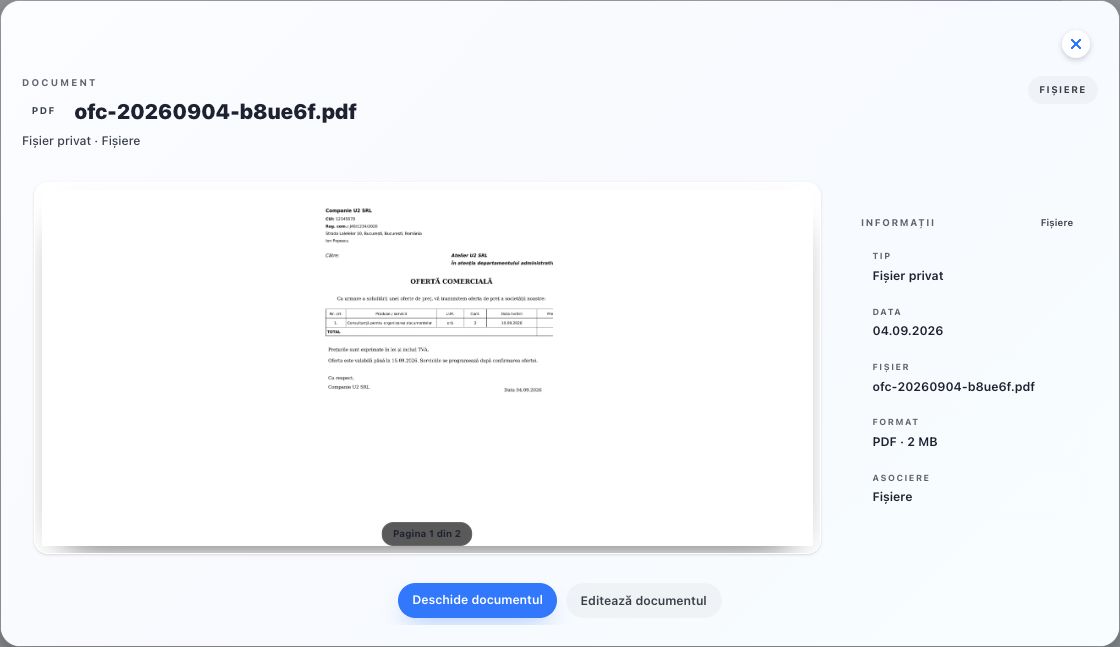
- Open the correct document and compare original, number, business partner and total without downloading. When Related files appears, expand it to view files linked to that document.
- For an unapproved document, use Moderate if you have edit permission. Correct from the original, wait for saving and confirm verified details only.
You identified the period's documents, necessary checks and invoices still outstanding.
Related resources
Practical example
The Atelier U2 SRL invoice is dated 30 September but uploaded on 2 October. Choose September, search Atelier U2 and check the original. For upload time, consult Account activity on 2 October.
Frequently asked questions and solutions
I cannot find the required document.
Expand search to Across Calendar and check active filters. The document appears by its own date, which may differ from upload day. If the date is not yet established, also search Documents or its originating application.
I see the document, but Moderate is missing.
Check whether it is already approved and whether you have moderation permission. For an issued invoice or another Fluxe-created document, open its originating application and use the operation appropriate to its status.
An invoice no longer appears in Due dates.
Open the invoice in Billing and check payment deadline, confirmed receipts and related credit notes. Due dates includes only issued invoices with a payment deadline and positive outstanding balance; a fully paid or credited invoice no longer appears.
I selected an old month, but the balance differs from that time.
Calendar shows the current remaining balance for invoices due in the selected period. To review an earlier position, consult that period's documents and receipt records.