
Check the active company, period and editing permission before any confirmation. Follow only steps applicable to the company's legal form and accounting regime.
Supporting documents
- Prepare the product or service sheets and the purchase or sales documents that support the corrected data.
Completing and checking data
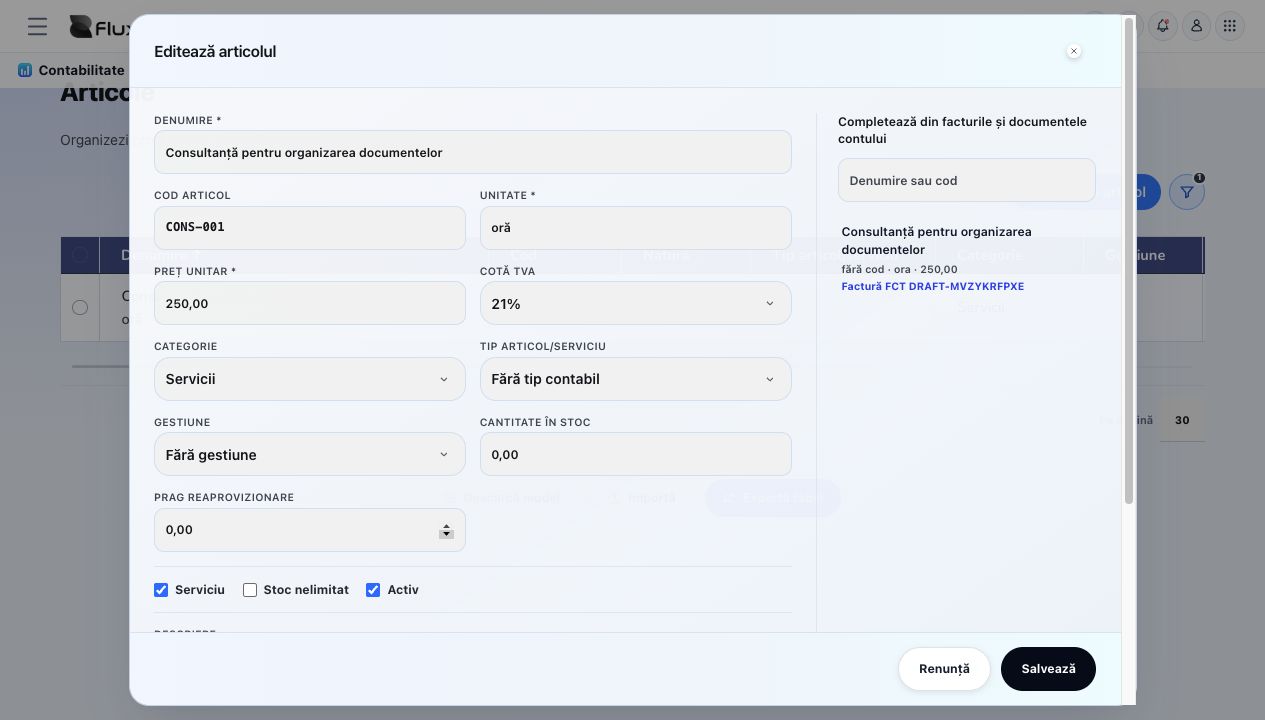
- Open Records → Items for the active company and search for the item before creating a new one. Check the code, name, unit of measure, type, inventory location and price against the documents.
- For a new item, use “Add item”. For an existing one, select the row and choose “Edit row details” in its details and options window. Complete the pop-up form only with values supported by documents.
- Check all fields in the form and save. If you cancel before saving, the existing catalog values remain unchanged.
- If a validation error appears, correct the indicated field in the same form and try again. The other items are not affected.
- After confirmation, review the saved values and continue to Item sheets to control how the item is used in transactions. Separate products from services and check the unit of measure before the first movement.
The reviewed item was saved without rewriting historical documents.
Official sources for this activity
Checked on 10 September 2026. Apply the rules for the period and the company's legal form.
Related resources
Practical example
You have an item coded CONS-01 with pieces as its unit. Search the code, check the stock location and price, and correct only the necessary fields in the form. Check a different unit, such as a pack of 10 pieces, before using the quantity in invoices or stock.
Frequently asked questions and solutions
You opened the wrong item or no longer want to apply the change.
Close the form or use “Cancel”. Values already saved in the catalog remain unchanged.
There are two similar Catalog records. How should I choose?
Compare identification and details determining the record’s purpose: code, partner, unit, stock location or period as applicable. Check documents using each record. Choose the record reflecting reality; do not rename or remove a used record merely to hide a duplicate.
I cannot find the three-dot menu. How do I edit an item?
In Records → Items, search by code or name and click the item's row. In the window with its details and options, choose Edit row details. Correct the pop-up form, save and check the values; use Add item for a new item.